
Save Places from Facebook, Google Maps Lists and Travel Blogs to One Map (2026 Guide)

travel_made_easy
The cafe you want to remember is not always in a TikTok. Sometimes it's in a Facebook group for expats in Lisbon. Sometimes it's a Google Maps list a friend built over three trips and shared in a group chat. Sometimes it's halfway down a "36 hours in Mexico City" article, or in a screenshot you took of someone's Story before it disappeared.
Most place-saving apps were built for one source, so those finds end up scattered across five silos: saved posts here, a bookmarked article there, a camera roll full of screenshots nobody will ever open again. Getting them onto one map used to mean retyping everything.
This guide shows how to get places out of each of those sources and onto one map with DocentPro, our travel app for iOS and Android. Full disclosure applies as always: DocentPro is ours, and this guide is about its workflow. The sharing step looks slightly different for each source, so each section below covers one.
Before you start
Install DocentPro (free on iOS and Android) and sign in. Everything below uses the same two ideas: you hand DocentPro a piece of content (a share, a link, an image, or text), and its place-extraction feature reads it and files the named places into a collection of your choice. Extraction usually finishes within a couple of minutes, and you can edit or remove places afterwards.
Save places from a Facebook post
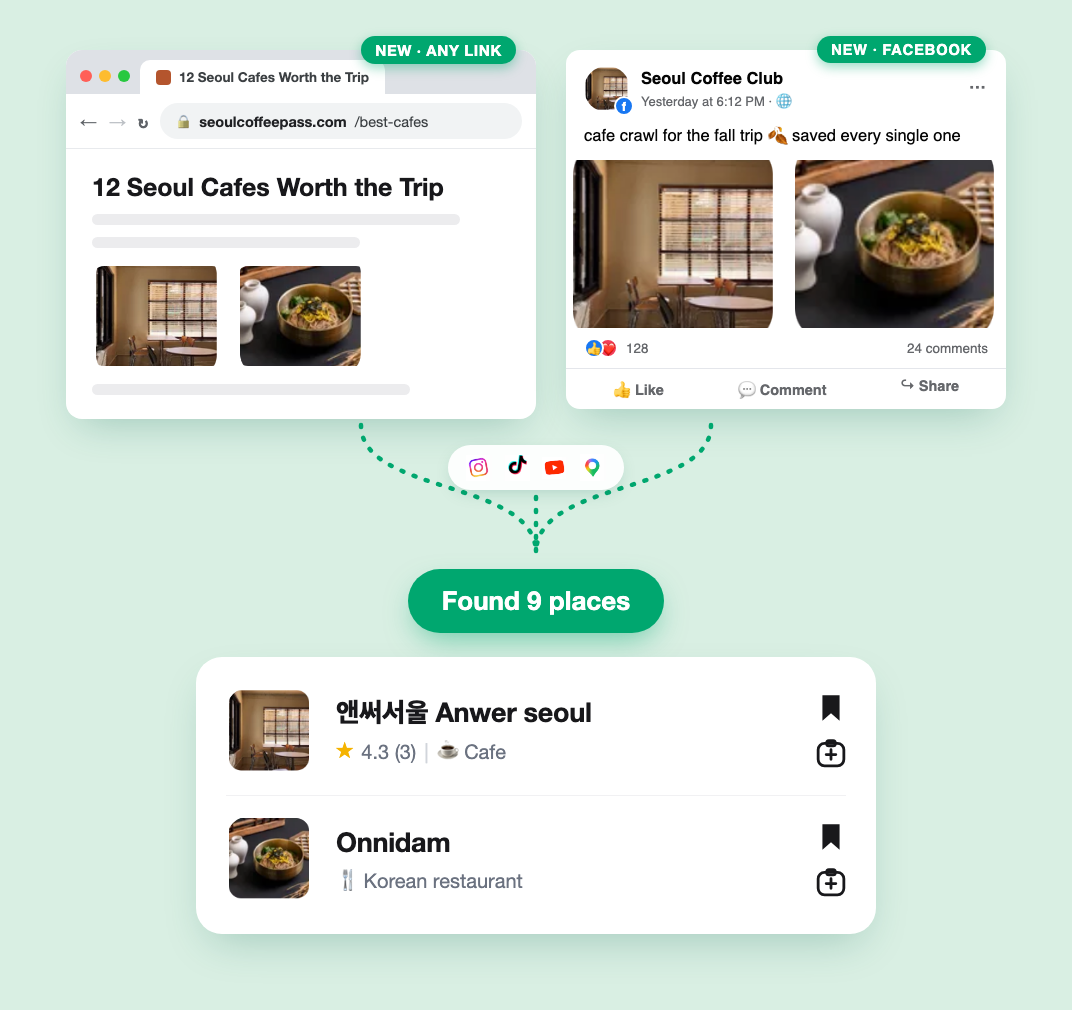
Food and travel Facebook groups are full of specific, local recommendations that never make it to TikTok. To capture them:
- Open the Facebook post, video or Reel.
- Tap Share, then choose DocentPro in the share sheet. If your Facebook app only offers Facebook-internal sharing options, tap Copy link instead and paste the link into DocentPro.
- Pick a collection. DocentPro reads the post's public content (caption, on-screen text, speech in video) and adds every named place to the collection, each pinned on the map.
One thing to know: DocentPro reads what the link publicly shows. A post inside a private group that the link can't display won't extract, so for private-group finds, a screenshot (covered below) is the reliable route.
Import a Google Maps saved list
A friend's "Tokyo favorites" list is often the best travel research there is. Instead of flipping between Google Maps and your planning app:
- In Google Maps, open the list (yours or one shared with you) under Saved.
- Tap Share and copy the list's link. The list needs link sharing on; a list that is private and unshared has no link to read.
- Share or paste that link into DocentPro and pick a collection. Each place in the list becomes a place in the collection, on the same map as everything you saved from social video.
This is the fastest way to merge someone else's years of research into your own trip. The list stays intact in Google Maps; DocentPro reads it, it doesn't move it.
Save places from any website
Airline magazine articles, "best brunch in" roundups, a hotel's own neighborhood guide: if a page names places, it can become a collection.
- Copy the article's URL (or use your browser's share button).
- Share or paste it into DocentPro and pick a collection.
- The named places come out with pins; the article stays linked from the collection so you can reread the why later.
This works on any public website, in any language, anywhere in the world: a Japanese blog about Fukuoka ramen extracts just as well as an English listicle about Rome.
Screenshots, photos and plain text
The catch-all lane, for everything that isn't a link:
- Screenshots: a Story that will disappear, a post in a private group, a map someone posted as an image. Share the screenshot to DocentPro and it reads the visible text.
- Photos: a menu, a street sign, a poster for a food market. Snap it, share it, and the place gets named and pinned.
- Pasted text: a friend's message listing five bars, notes you typed on a plane. Paste the text into DocentPro and the places come out.
For images, extraction quality depends on the text being legible; a sharp screenshot works better than a blurry night photo of a sign.
One map, then a plan
Whatever the source, everything lands in the same kind of collection, which is the point: a Facebook find, a friend's Google Maps list and a blog article stop being five apps' worth of fragments and become one map. From there, DocentPro's AI turns a collection into a day-by-day itinerary, suggests activities near your saved spots, and books the hotel without leaving the app.
If you're deciding between capture apps more broadly, we compared the whole category (including where competitors beat us) in our guide to the best apps to save places from TikTok, Instagram Reels and YouTube.
When extraction struggles
Honesty section. Extraction reads content; it can't invent what isn't there. A video montage that never names its places is hard for any tool. Private Facebook groups and unshared Google Maps lists can't be read from a link, so use screenshots for those. And a photo only extracts as well as its text is readable. When a place does come out wrong, you can edit or delete it in the collection.
Try DocentPro free on iOS and Android, or browse a sample public collection (Korea must visit 2026) built the same way.
Frequently asked questions
How do I save places from a Facebook post to a map?
Share the Facebook post to DocentPro from the Facebook share sheet, or copy the post's link and paste it into DocentPro. DocentPro reads the post's public caption, on-screen text and speech, then pins every named place in a collection on a map, on iOS and Android.
How do I import a Google Maps saved list into a trip planner?
In Google Maps, open the saved list, tap Share and copy its link, then share or paste that link into DocentPro. Every place in the list becomes a place in a DocentPro collection, which an AI can then turn into a day-by-day itinerary with in-app hotel booking. The list must have link sharing enabled.
Can an app extract places from a travel blog or news article?
Yes. Paste any public article link into DocentPro and it extracts the named places onto a map, keeping the article linked from the collection. This works on any public website, in any language.
Can I get places out of a screenshot or a photo of a menu?
Yes. Share a screenshot or a photo of a menu, sign or poster to DocentPro and it reads the visible text and pins the named places. Extraction quality depends on the text being legible in the image.
Do I need to connect my Facebook or Google account to save places?
No. DocentPro only reads the public content of the link or image you share with it. It never logs into your Facebook or Google account, and private content that a link cannot display is not read.
What sources can DocentPro extract places from?
DocentPro extracts places from Instagram Reels and posts, TikTok videos, YouTube videos and Shorts, Facebook posts, Google Maps saved lists, website links, screenshots, photos of menus and signs, and pasted text. Everything lands in collections that AI can turn into an itinerary with in-app hotel booking.
Related articles
Back to all articles